
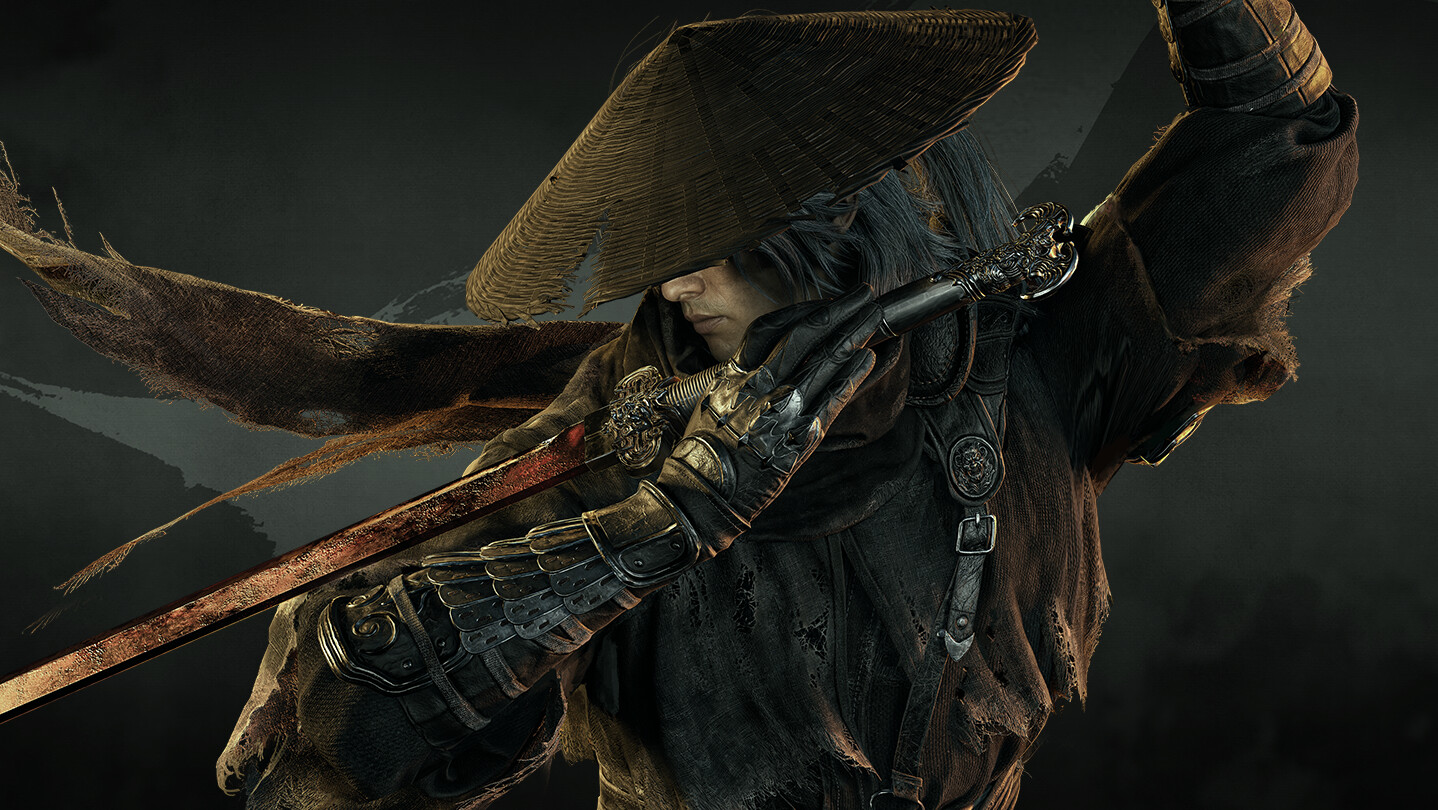
Phantom Blade Zero arrived on PC and PlayStation 5 on October 28, 2026, according to the recent Steam launch announcement. The Steam launch-preparation post gives PC players three concrete tasks: install on an SSD, update graphics drivers, and leave enough space for the download and preload process. It describes the game as approximately 145 GB and recommends reserving at least 300 GB of free disk space for preload. Those figures answer different questions: 145 GB is the approximate game download, while 300 GB is the requested temporary headroom. Do not treat the larger figure as the final installed size.
The store requirement table is the best starting point for compatibility, but it is not a guarantee that every PC will deliver identical results. Resolution, upscaling, background tasks, drivers, patches, and display configuration all affect the experience. This guide keeps the steps reversible: confirm the baseline first, then make one change, test it in the same scene, and revert if the result gets worse.
Compare your hardware against Steam’s published targets
The Steam listing’s minimum tier names Windows 10 or 11, an Intel Core i7-8700K or AMD Ryzen 5 3600 processor, 16 GB of memory, and either a GeForce GTX 1660 with 6 GB or Radeon RX 5500 XT with 8 GB. It specifies an SSD and DirectX 12, and describes the target as 1080p at 30 frames per second with upscaling. The recommended tier names an Intel Core i5-10600K or AMD Ryzen 5 5600X, 16 GB RAM, and either a GeForce RTX 3060 Ti with 8 GB or Radeon RX 6700 XT with 12 GB. The stated target there is 1440p at 60 frames per second with upscaling.
Check your exact processor and graphics card model rather than relying on a product family name. A desktop GPU and a laptop GPU can carry similar labels while behaving differently, and shared laptop memory is not always equivalent to dedicated VRAM. Open the system information panel or your GPU vendor utility, note the complete model, and compare it with the store’s wording. If you sit near the minimum tier, start with the stated lower target instead of assuming that a higher resolution preset will remain smooth.
These targets do not specify a universal preset or an exact frame-rate result for every scene. Upscaling is part of the published target, so account for it when setting expectations. If Steam has revised the requirement table since this snapshot, use the live version. Avoid translating a brief promotional clip or another player’s machine into a performance promise for your own configuration.
Plan storage before downloading or moving files
Reserve at least 300 GB of free space on the SSD you intend to use before beginning preload or a major installation step. Keep the launcher’s destination drive in view: users often clear space on one disk but leave Steam pointed at another. The approximately 145 GB download is not a promise that only that much free space will be needed during unpacking or patching. A client may temporarily hold compressed data and installed files at the same time.
If the download pauses during installation, verification, or unpacking, check the client status before cancelling it. Disk activity can continue while the visible progress bar appears unchanged. Let the process complete, then check the installed size in the platform’s storage view. If you need to move the game, use the launcher’s built-in storage transfer after installation finishes rather than dragging a partially downloaded folder between drives.
The official storage recommendation is for the preload process and may not describe later updates. Keep some free space after installation so Windows, the graphics driver, and future game updates have room to work. A nearly full system drive can cause separate problems even when the game itself is installed elsewhere, because temporary files and shader caches may still use the operating-system drive.
Update the graphics driver carefully
The launch post explicitly asks PC players to update graphics drivers. Use the official utility for your GPU vendor or the vendor’s official download page, choose the driver for your exact device, and follow its installer prompts. If the installer asks for a restart, restart before testing. Avoid third-party driver bundles or a manual registry cleanup as a first step; neither is needed to carry out the basic update the developer recommends.
Do not change multiple driver-level features while you are installing the game. Keep global sharpening, frame caps, low-latency overrides, forced anti-aliasing, and experimental profiles at their normal values until you have a baseline. If you already use a custom profile, record its values before temporarily restoring defaults for a test. One variable at a time makes it possible to know whether a change helped.
Make the first run a controlled baseline
After Steam reports that the install is complete, launch the game once with the current driver and default in-game settings. Allow any first-run setup to finish and avoid interrupting shader compilation if the game indicates that it is working. Spend a few minutes in the same opening area or repeatable encounter you can return to. Notice whether the problem is a low average frame rate, a hitch when effects appear, a long loading transition, or a full crash. Those symptoms point to different causes.
Record the resolution, display mode, graphics preset, upscaling option, and frame cap shown in the game. If the game provides performance telemetry, note the frame rate and GPU or CPU load during the repeatable test. Do not infer a bottleneck from one number viewed during a loading transition. A brief hitch on the first visit to an area can differ from a persistent low frame rate on every return.
Close a background capture or overlay only if you have a reason to test it, then repeat the same scene. Launchers, chat overlays, recording tools, and GPU monitoring overlays can interact with some games, but there is no guarantee that any particular one is the cause. If disabling one changes the result, re-enable it once to confirm the relationship before deciding to keep it off.
A measured routine for stutter and low performance
- Confirm Steam has finished downloading and verifying the current game files.
- Restart the PC after a driver update if the installer requested it.
- Check that the game is using the intended GPU, especially on a laptop with integrated and discrete graphics.
- Return in-game graphics settings to a known preset and test the same area again.
- Lower one expensive setting or enable the in-game upscaling option, then compare the repeatable scene.
- Change the resolution or frame cap only after you have observed the effect of the previous change.
Keep the display’s refresh rate and the game’s frame cap in mind. A cap above what the system can sustain may produce uneven pacing even if the average number sounds high. A lower, stable cap can feel smoother than a fluctuating one on some configurations. Test the available in-game options first and make sure the monitor is set to its intended refresh rate in Windows. Do not assume that every setting mentioned in a community post exists in the current version of the game.
For a crash or black screen, first confirm the install completed, check for an available update, and restart the launcher once. On PC, compare the actual hardware against the published requirements and preserve the exact error text. Avoid deleting save data, manually replacing DLLs, or changing several system settings before you know whether the issue is repeatable. If you report a problem, include your CPU, GPU, RAM, driver version, game version, and the action that triggered the issue.
Extra checks for laptop players
Connect the laptop to power and select its normal performance profile before testing. Some systems reduce GPU power on battery, so a benchmark taken unplugged may not represent normal plugged-in play. Confirm Windows assigns the game to the dedicated GPU if your laptop has switchable graphics. Keep the vents clear and do not block the bottom intake with a blanket or soft surface.
Heat can reduce clock speeds over a longer session. If performance begins normally and falls after several minutes, compare temperatures and clock behavior with the manufacturer’s own monitoring utility, then test with unobstructed airflow. Do not use an aggressive overclock or undervolt profile as the first remedy; a stable stock configuration gives you a cleaner baseline and simpler troubleshooting.
FAQ
How large is Phantom Blade Zero on PC? The launch preparation announcement describes it as approximately 145 GB and asks players to reserve at least 300 GB of free space for preload.
Does it need an SSD? Yes. The Steam requirement table and the launch post specify an SSD.
What does the recommended PC target say? Steam lists 1440p at 60 fps with upscaling for the recommended tier, paired with the CPU, GPU, and memory models described above.
What should I do first when it stutters? Verify the install, restart after a driver update, test the same scene, and change one in-game option at a time.
Is this a guaranteed best-settings list? No. It uses the published requirements and a repeatable diagnostic method; the best settings depend on your hardware and the current game build.